
Welcome to PriceFetchWP, a WordPress plugin that can fetch and display prices from external websites on your pages, posts, and WooCommerce products.
This guide walks you through the basic installation and setup so you can start fetching external prices quickly.
Step 1 — Install the Plugin
Download the PriceFetchWP plugin ZIP file from your account.
In your WordPress site dashboard go to:
Plugins → Add Plugin → Upload Plugin


Upload the PriceFetchWP ZIP file, click Install Now, and then click Activate Plugin.
Once activated, the PriceFetchWP menu item will appear in your WordPress dashboard.
Step 2 — Activate Your License
Navigate to: WordPress Dashboard → PriceFetchWP

Before the main plugin settings can be used, you will need to activate your PriceFetchWP license. Enter your license key and click the activation button.
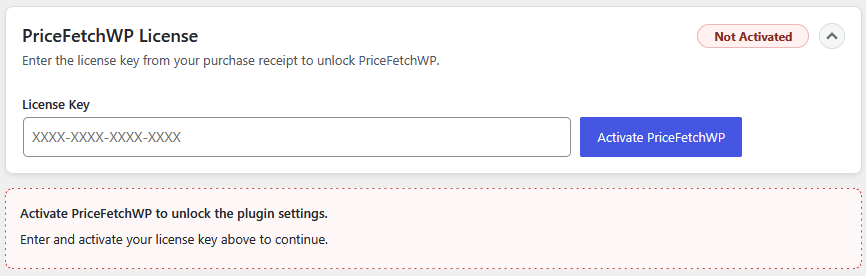
Once the license has been successfully activated, the PriceFetchWP settings will become available.
If you need additional help with licensing, see: License Management
Step 3 — PriceFetchWP Settings
Once the license is activated, you can start configure your PriceFetchWP settings, including:
- URL entries and price selectors
- Price caching and fetch behavior
- Page and Post settings
- WooCommerce settings
- Affiliate and proxy integrations
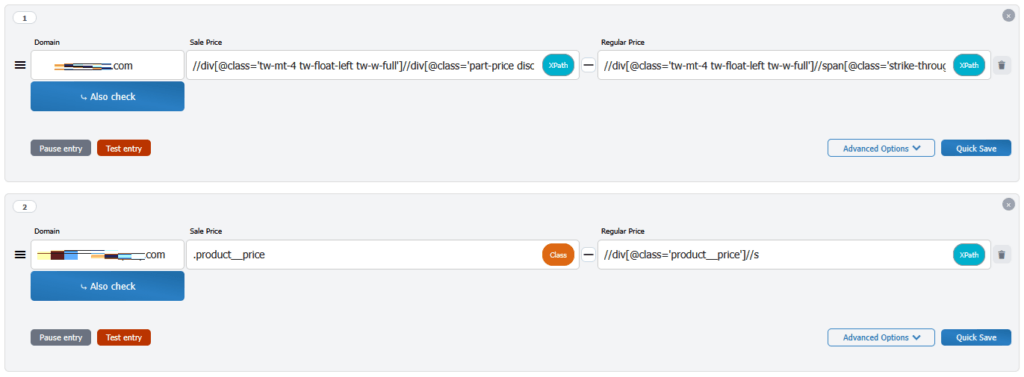
The URL Price Entries section is where you define how PriceFetchWP should handle URLs from each external website, including how to locate the price and any special fetch settings.
Step 4 — Overview of Settings
Inside the PriceFetchWP dashboard, you’ll find the main configuration areas:
- URL Entries – Define the external domains PriceFetchWP should recognize
- Price Selectors – Set how prices are located using XPath, element ID, Class, or Script selectors
- Price Cache – Control how long prices are saved
- Loader Settings – Customize loading indicators
- Advanced Options – Configure caching, proxy, affiliate, and request behavior for individual URL Entries
The URL Price Entries section is the main place to start.
Each entry tells PriceFetchWP how to recognize an external website and how to retrieve prices from URLs that match that entry.
Once you have created a URL Entry, use Test Entry to confirm that PriceFetchWP can reach the external page and find the correct price before using it on your site.
Next Steps ───
After installation and license activation, continue with:

