
This guide walks you through the minimum setup required to start fetching external prices using PriceFetchWP for WordPress.
By the end of this guide, you will have a working configuration that pulls a live price from an external website.
The basic setup is similar for both non-WooCommerce and WooCommerce (affiliate) WordPress sites. WooCommerce has one additional setup step.
– Step 1 — Add a URL Entry
You first need to define which external domain you’ll be targeting and how PriceFetchWP should find the price.
For normal direct or proxy website fetching, you can target external prices using:
- XPath
- ID
- Class
- Script
You have the option to target both Regular Price and Sale Price values, since many e-commerce sites display both.
Tip: Click Quick Save at any time to save your data. Quick Save works without refreshing the page.
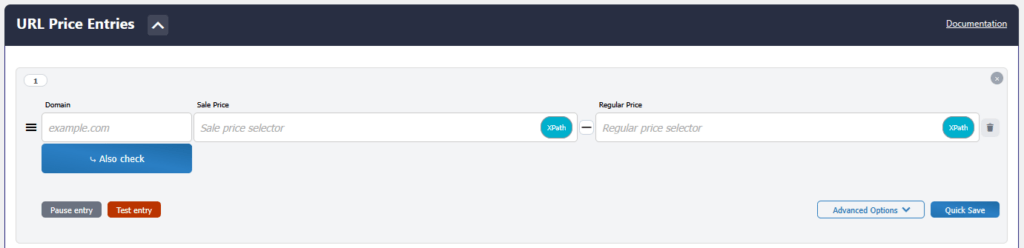
Domain
Enter the domain of the external site where you want to start checking for prices.
We’ll be using a real example here:
fontanacandlecompany.comNow that you have entered the domain you will be targeting, the next part is usually the most challenging.
For a normal website fetch, you need to view the HTML from the external website and find the Regular Price and/or Sale Price using an ID, Class, XPath, or Script selector.
Read this guide on how to target external website prices.
Note: You do not need to add both a Regular Price and Sale Price selector in order for a price fetch to work. You can add just one or the other if you’d like.
In most cases, you’ll want to target and pull in both the sale and regular price. Further in the settings, you can change how the prices are displayed on your site.
Sale Price Selector
Enter the selector that targets the Sale Price from the external website.
XPath example:
//span[@class='product__price--regular product__price--sale']Regular Price Selector
Enter the selector that targets the Regular Price from the external website.
XPath example:
//s[@class='product__price--compare']For this example, you would now have a URL Entry like:

Selector Type
Note: Be sure to choose how each selector should be interpreted:
- XPath
- ID
- Class
- Script
If the wrong selector is chosen, the price fetch will fail.
Here’s an alternate example if you were not using XPath to target the prices.

Same scenario here, just targeting Class instead of XPath. You have full control over what exactly to target. These can even be mixed if needed.
Using an Affiliate API?
If you are using one of PriceFetchWP’s supported Affiliate APIs, such as Amazon or eBay, you do not need to configure normal price selectors for that entry.
Instead:
- Configure your Affiliate provider under Affiliate Integration
- Open Advanced Options for the URL Entry
- Enable Use affiliate
- Select your configured provider
The Affiliate API will then be used as the price source for that entry.
See: Affiliate Integration for complete setup information.
– Test Your URL Entry
Before using the URL Entry on your site, try Test Entry.
Click: Test Entry
Enter the exact external product page you want to test.
For example:
https://fontanacandlecompany.com/collections/bundles/products/ultimate-fall-candle-bundle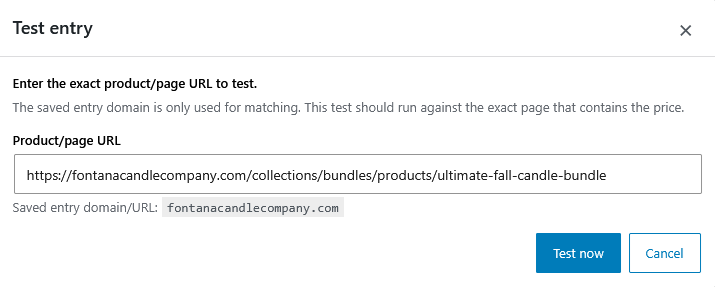
Click: Test now to view the results
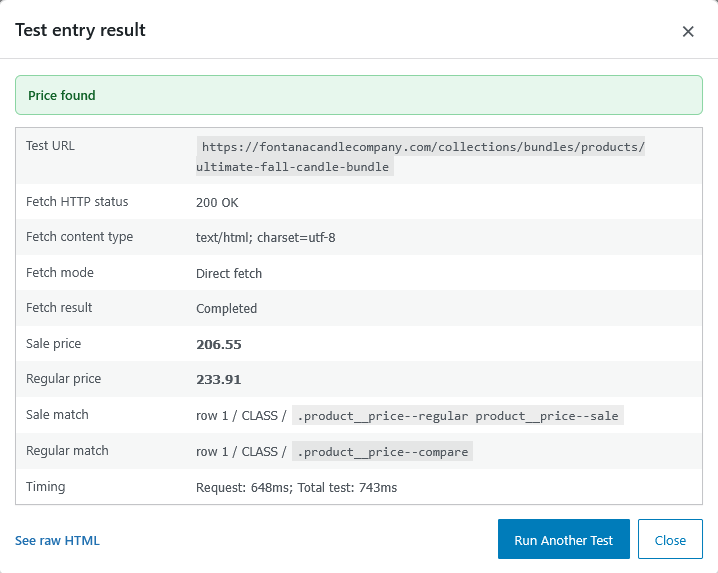
Confirm that PriceFetchWP:
- Successfully reaches the page or Affiliate API
- Returns the expected Sale Price and/or Regular Price
- Uses the correct selector or Affiliate provider
It’s always best to test the URL Entry before you begin using it across your site.
We also recommend testing several URLs from the same external website when possible. This will help determine if the site uses different layouts for their prices. In most cases they will be the same, but you may need to add Also Check secondary checks.
See: Testing a URL Entry for more information.
Congratulations! You just completed your first URL Entry and confirmed that PriceFetchWP can retrieve the price.
From here, you can open Advanced Options to configure additional settings for this specific URL Entry, or click Add New Entry + to add more external price sources.
Now that PriceFetchWP is connected to the external price source, the next step is deciding where you want to use the price.
Using WooCommerce? If so, skip to Step 2.B.
– Step 2.A — Add shortcode to Page/Post
There is technically no limit on how many external prices you can pull into your pages and posts.
As long as your PriceFetchWP settings are correctly configured, you can display updated prices wherever needed by placing the proper shortcode in your content.
In a page/post, PriceFetchWP will:
- Detect the manually placed shortcode(s)
- Match the external URL domain to your URL Entry
- Fetch the price from the external source
- Display the updated price(s)
⚠️ Common Issues
If the price does not appear:
- Check that the shortcode is correct
- Verify the URL domain matches your URL Entry
- Ensure the selector is correct (XPath, ID, Class, or Script)
- Run Test Entry using the exact external product URL
- Ensure the external source is accessible
If Test Entry successfully finds the price but it does not display on your page or post, see: Price Not Showing
– Step 2.B — Add Custom Field to a Product (WooCommerce)
After completing Step 1, you now need to connect your WooCommerce product to the external price source.
We’re connecting one product in this example, but you can connect all of your External/Affiliate WooCommerce products by attaching the PriceFetchWP custom field to each product.
PriceFetchWP uses the following default global custom field name:
external_price_fetchYou can find this under the PriceFetchWP WooCommerce Settings section.
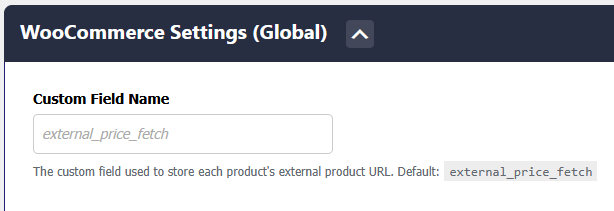
For most installations, you can leave the default custom field name unchanged.
If you choose to rename it, the same custom field name must be used across all of your products.
Only the custom field value will be different for each product.
Next:
- Open a WooCommerce product
- Make sure the product type is set to External/Affiliate
- Scroll down to Custom Fields
- Add a new field
Enter the global Custom Field Name used in your PriceFetchWP WooCommerce settings.
Using the default:
external_price_fetchThen enter the Custom Field Value.
This should be the normal/direct URL of the original external product page used for price fetching—not your affiliate tracking URL or shortened link.
For example:
https://fontanacandlecompany.com/collections/all-candles/products/fresh-arrivals-jar-candle-bundleThis is the custom field that would be attached to your External/Affiliate WooCommerce product in this example.
Since you already configured:
fontanacandlecompany.comas a URL Entry, PriceFetchWP recognizes the domain in the custom field value and uses the matching URL Entry configuration to retrieve the price.

Save or update your product.
Re-check that the custom field saved correctly.
That’s it!
When PriceFetchWP processes the product, it reads the external URL from the custom field, matches it to the correct URL Entry, and retrieves the Regular Price and/or Sale Price according to your configuration.
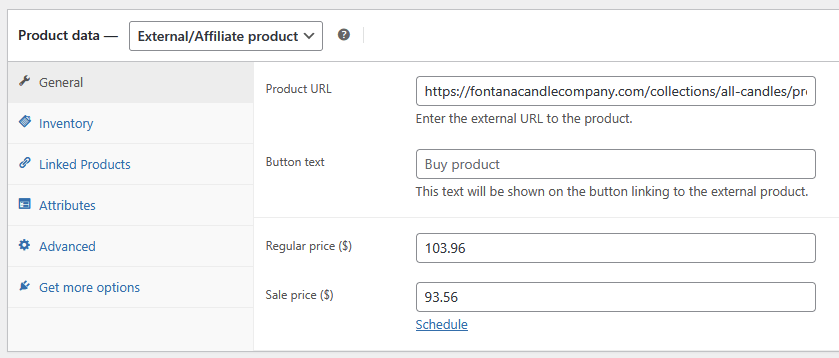
To sum this up: You have a WooCommerce External/Affiliate product. The Product URL should be your affiliate product link, or URL you want tracked. You will have a custom field attached to your products – the global custom field name in PriceFetchWP settings, and the custom field value as the affiliate product page’s original URL (not affiliate link). This allows PriceFetchWP to fetch directly from the external page, without skewing any kind of affiliate tracking. Once your product page is first viewed, PriceFetchWP will initiate and pull in the regular/sale price. If the URL entry was set correctly and a price was pulled, it will save the price(s) to your WooCommerce product along with a cache transient depending on your settings.
⚠️ Common Issues
If the WooCommerce price does not appear or update:
- Check that the custom field name exactly matches your PriceFetchWP WooCommerce setting
- Verify the custom field value contains the full original product URL
- Verify the URL domain matches your URL Entry
- Run Test Entry using the external product URL
- Ensure your selectors are correct if using a normal website fetch
- Confirm the Affiliate provider is configured correctly if using Affiliate Integration
- Ensure the external source is accessible
If Test Entry successfully retrieves the correct price but the WooCommerce price still does not display correctly, see:
Next Steps ───
Now that you have a working setup, continue with:
- How PriceFetchWP Works
- URL Entries
- Finding Price Selectors (XPath, ID, Class, Script)

